Online Code Playground
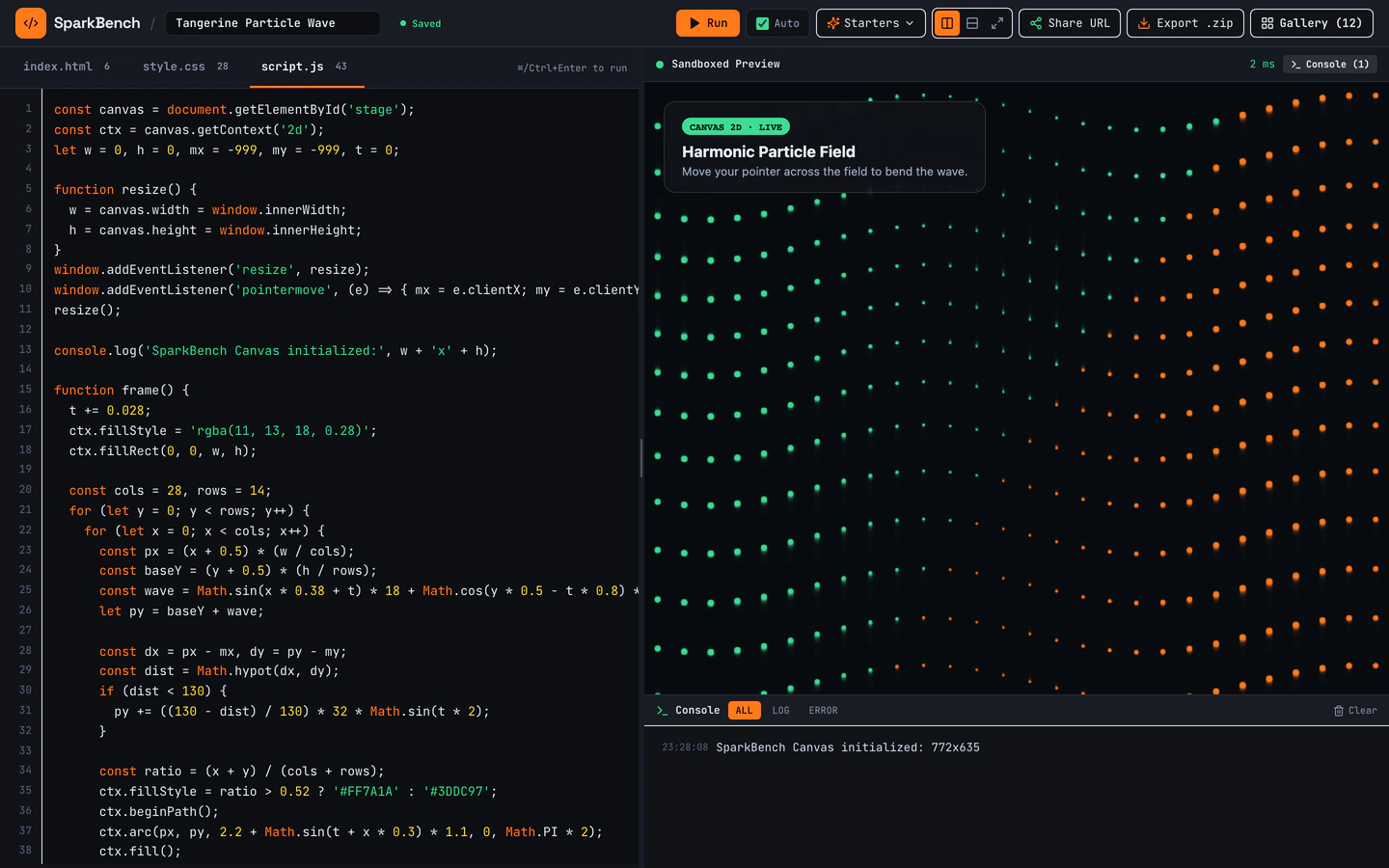
Dark-mode HTML, CSS, and JS sandbox with bundled Three.js, live console, URL sharing, ZIP export, and 12 seeded pens.
Gemini 4 Neon
Use case
2 website templates for dev tools with live demos, including Online Code Playground and Developer Utilities Toolbox.
2 templates, each with a live demo and the exact prompt that built it.
Often paired with
Dark-mode HTML, CSS, and JS sandbox with bundled Three.js, live console, URL sharing, ZIP export, and 12 seeded pens.
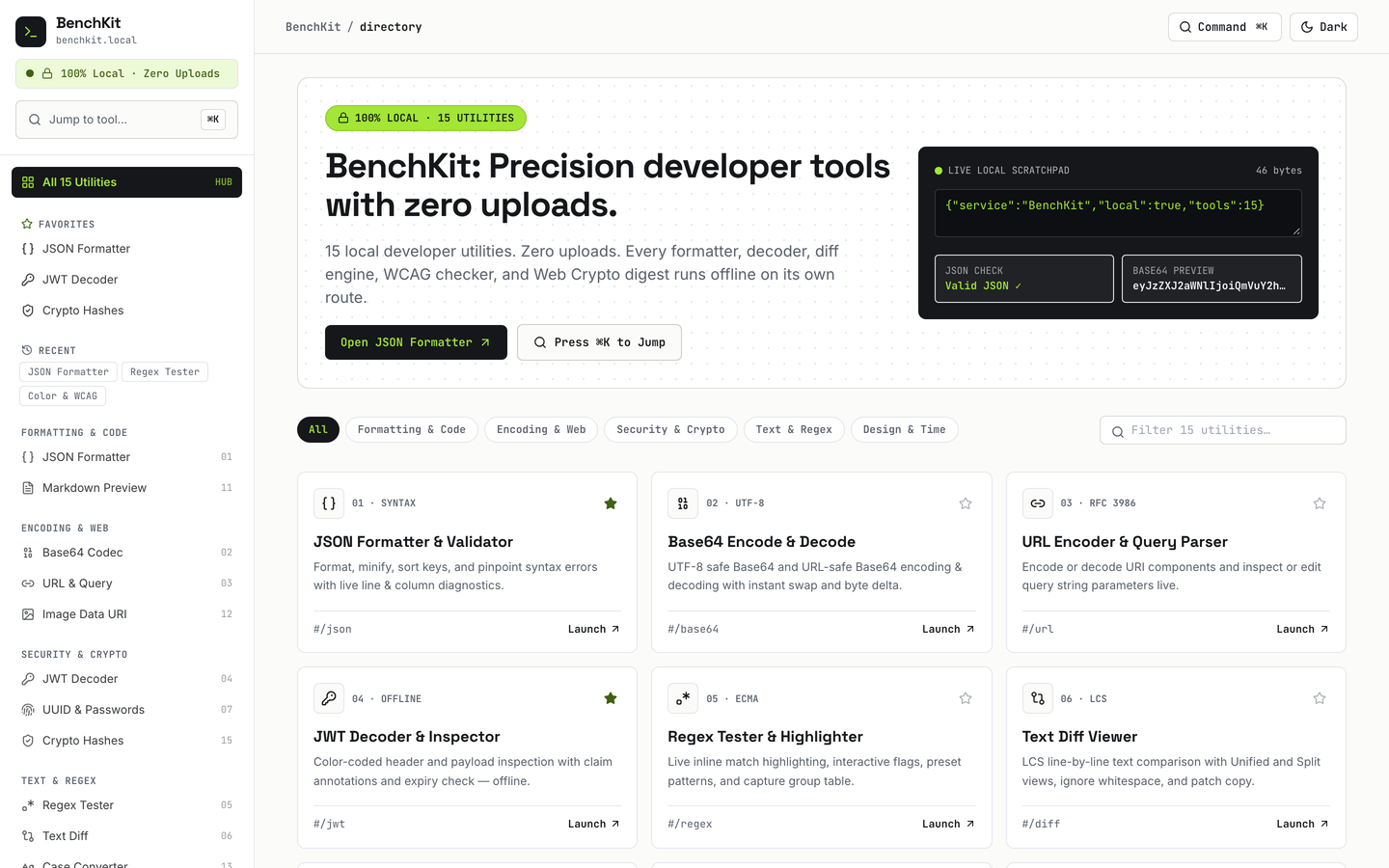
15 working browser-local developer utilities with Cmd+K jumper, favorites, history, and dark mode.
Dev tool sites have a harder job than most marketing pages: visitors arrive wanting to try something, not read a brochure. The two templates on this page are built for that. The Online Code Playground is a dark-mode HTML, CSS and JavaScript sandbox with a live console, URL sharing, ZIP export and seeded pens, while the Developer Utilities Toolbox packs 15 browser-local utilities behind a Cmd+K jumper, favorites and history. Both come from the same stack and the same build path, so the difference is scope: one focused workspace against a wider set of small tools.
Both templates are free, both were built with Gemini 4 Neon in Antigravity, and both run entirely in the browser, which suits a tool page where the demo is the product. Starting from a published prompt gives your agent a working structure, the utility list, keyboard behavior and dark styling already decided, so you spend your requests on your own tool set rather than on scaffolding a layout from a blank chat.
Choose the Online Code Playground if your product is one focused editing surface, or the Developer Utilities Toolbox if you want many small utilities under one roof. The toolbox spans 16 pages, so it needs a clearer navigation and naming plan than the two-page playground.
Write down every tool you want available before you prompt. The Developer Utilities Toolbox ships with 15 working utilities, and each one needs a name, a one-line description and a place in the Cmd+K jumper. Deciding this up front keeps favorites, history and search consistent.
Point the brand variable at your product name and adjust the dark palette to match your own identity, since both templates lean on dark mode. Keep contrast high on code, console output and result panes, because developers read dense text in these screens for long stretches.
Open the Cmd+K jumper and confirm every utility is reachable by typing. Then test on a phone: the playground console, URL sharing and ZIP export all need to stay usable on a narrow screen, and long code lines should scroll rather than break the layout.
Use each utility with real input and confirm it works locally in the browser without a backend. Check that history and favorites persist as expected, then replace or extend the seeded pens and utility list so the site reflects your own product rather than the sample set.
FAQ
The Online Code Playground is a single dark-mode HTML, CSS and JavaScript sandbox with a live console, URL sharing, ZIP export and 12 seeded pens across 2 pages. The Developer Utilities Toolbox spreads 15 working browser-local utilities across 16 pages with a Cmd+K jumper, favorites and history. Choose the playground for one editing surface, the toolbox for a collection of small tools.
Yes. Both dev tool templates on VibeFather were built by an AI coding agent from a published prompt using Gemini 4 Neon in Antigravity, and the same prompts are available to start your own build. You describe the utilities or editing surface you want, give the agent the prompt, and adjust the brand, palette and tool list from there.
The Developer Utilities Toolbox runs its 15 utilities locally in the browser, so visitors can use them without a backend or account. That keeps the site simple to host as static files and means the tools keep working as long as the page loads. You can still add your own server-backed utilities later if a tool needs one.
Start with the Developer Utilities Toolbox and describe each new tool to your agent the way you would describe it to a developer: the input, the output and any options. Then place it in the Cmd+K jumper and the favorites list so it is discoverable. The playground works the same way if you would rather extend the sandbox than add separate utilities.
Change the brand name, the dark palette and the 12 seeded pens first. The seeded pens are what visitors see on arrival, so replacing them with examples from your own product or documentation makes the playground feel like yours. After that, review the console, URL sharing and ZIP export labels so the wording matches how your users talk.
Free templates' prompts and every DESIGN.md are free for personal, non-commercial use under CC BY-NC 4.0. Commercial and client work needs Pro, which also covers the full prompt for Pro templates and the source code of the demos. Both templates on this page are free, so start there and move to Pro when the project is paid work.
2 of the 2 website templates for dev tools on VibeFather have a free prompt and DESIGN.md for personal projects (CC BY-NC 4.0). Pro adds every prompt, the source code of each live demo and a commercial license.
The live demos here were built by Gemini 4 Neon (2), each from the published prompt with nothing added. Every demo is labeled with the model and the coding tool that built it.